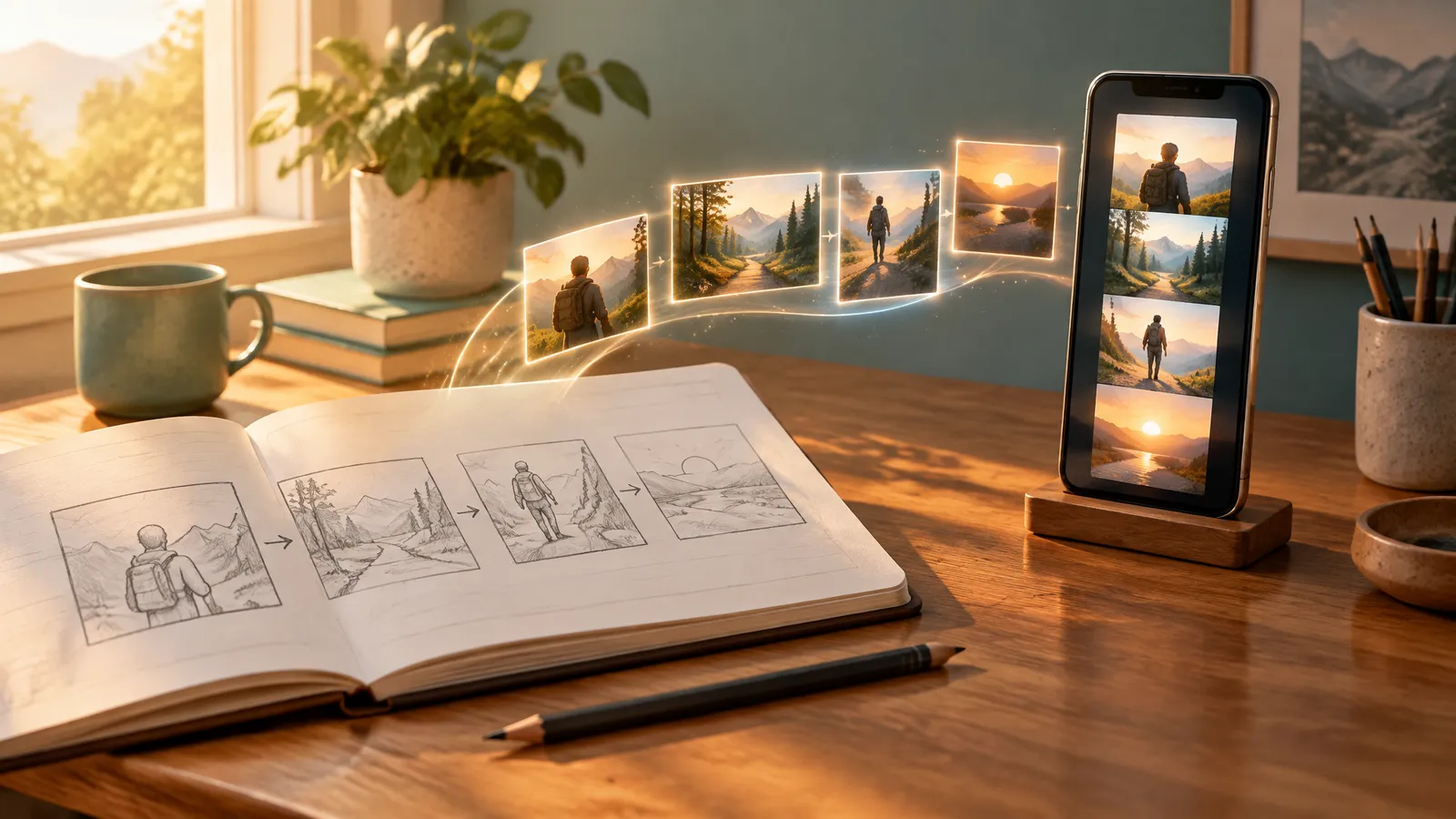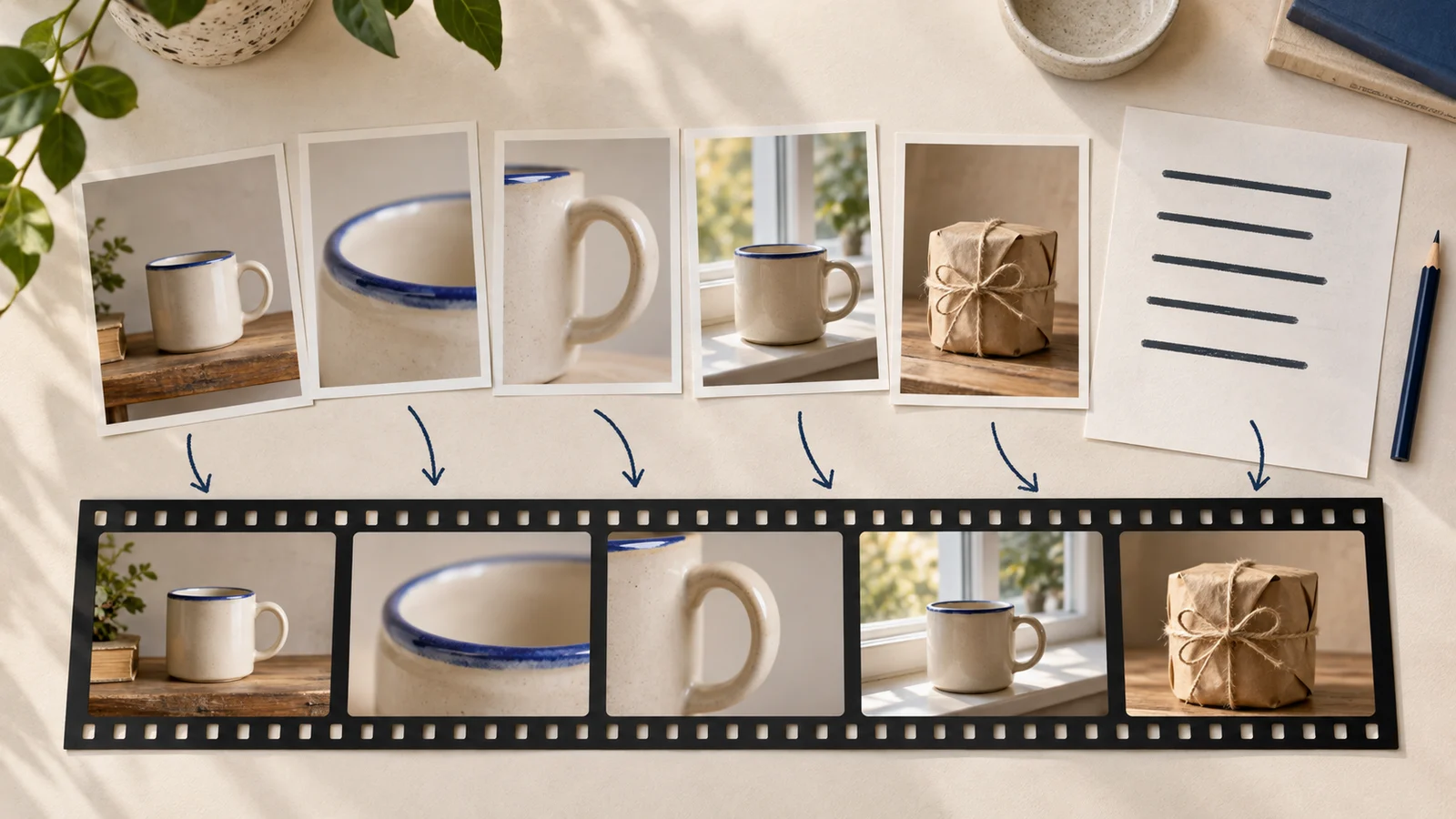
To animate a picture with AI, upload one photo to an image-to-video tool and describe how it should move. Pick a length and shape, then generate. Your photo becomes the first frame of a short clip, and the AI draws every frame after it. The habit that matters most: describe the motion, not the picture, so your subject stays the same.
Below are three real before-and-after examples made with FrameSurfer, each with its exact prompt. First, a quick look at the three jobs "animate a picture" can mean.
Three ways to make a picture move
| Method | What moves | Best for |
|---|---|---|
| Pan and zoom | The frame only. The picture never changes. | Slideshows, old photos, documentary-style videos |
| AI image to video | Things inside the picture: people, water, light, the camera | Social posts, product shots, art, places |
| Talking photo | A face says a line you write | Spokesperson clips, characters, explainers |
Pan and zoom. A slow push into a face, or a drift across a group photo, is often called the Ken Burns effect. No AI is involved. The pixels stay as they are, so nothing can look fake. The limit is that nothing inside the picture moves.
AI image to video. This is what most people mean today. The model generates new frames from your photo: hair lifts in the wind, steam rises from a cup, the camera circles a product. It is the focus of this guide.
Talking photo. Here the goal is speech. On FrameSurfer, Talking Character takes one clear front-facing photo and the line you type, and returns a clip of that face saying it. Short lines work better on camera.
One more meaning shows up in search results: animating a picture on a PowerPoint slide. That is a slide effect, not a video. Select the picture and open the Animations tab. Pick an effect such as Fly In, then use Effect Options to choose a direction (Microsoft's guide, as of September 2026).
How to animate a picture with AI, step by step
These steps follow FrameSurfer's Image to Video tool. You can add the photo and write the motion without an account. Generating runs a paid model, so it needs a FrameSurfer plan.
1. Pick a photo that can move
Choose one clear subject, in focus, with no text or logos laid over it. The model keeps what is already in the frame and adds movement. Anything blurry or cut off stays that way.
Good signs in a source photo:
- Space around the subject, so the camera has room to move
- Things that would move in real life: water, hair, fabric, leaves, steam, smoke
No photo yet? Make a still first with Text to Image, then animate it.
2. Choose the shape, length and sound
Shape. Pick 9:16 for vertical posts, 1:1 for a square feed, or 16:9 for widescreen. If your photo is a different shape, keep the subject near the middle so a trim at the edges does not cut it. The three examples below started as 2:3 portrait stills and came out as 9:16 clips, a little narrower.
Length. You pick the exact number of seconds before generating. The longest clip is 8 seconds on Veo 3.1, 10 to 15 seconds on most other models, and 30 seconds on Alibaba Wan 3. For one photo, 5 to 8 seconds is usually enough to show one clear movement.
Sound. On models that make sound, generated audio is on or off for each clip. Turn it off if you plan to add your own music later.
3. Describe the motion, not the picture
The model can already see your photo. If you describe the picture again ("a woman with dark hair in a green apron"), it may redraw her. If you describe only what changes, it keeps her.
A useful motion prompt has up to four parts:
- Camera: how the view moves (push in, pull back, orbit, pan, or stay still)
- Subject: what the main person or thing does
- Surroundings: small background motion (mist, ripples, leaves, light)
- Lock: what must not move, such as "Nothing else moves."
Write it in one or two plain sentences. Start with slow, gentle verbs such as slowly, gently and slightly. You can always ask for more.
4. Pick a model
All 13 video models on FrameSurfer can start from a photo, and Grok Imagine is the default. The full comparison is on the AI video models page.
| If you want | Model | Why |
|---|---|---|
| A quick default | Grok Imagine | 720p, 1 to 15 seconds, sound option |
| The longest single clip | Alibaba Wan 3 | 2 to 30 seconds, up to 1080p |
| 1080p with sound | Kling 3.0, Seedance 2.0 or Veo 3.1 | Each offers 1080p and generated audio |
| A short, fixed length | Veo 3.1 or Veo 3.1 Fast | 4, 6 or 8 seconds |
5. Generate, watch, and change one thing
Watch the whole clip once. If something is off, change one part of the prompt and run it again. If you change everything at once, you cannot tell what fixed it. The finished MP4 downloads to your device and also stays in your FrameSurfer media library.
Three real before-and-after examples
Each pair below was made with FrameSurfer's Image to Video tool. The "before" is the still that went in. The "after" shows the first 4 seconds of the 6-second clip.
Sneaker: a product that turns
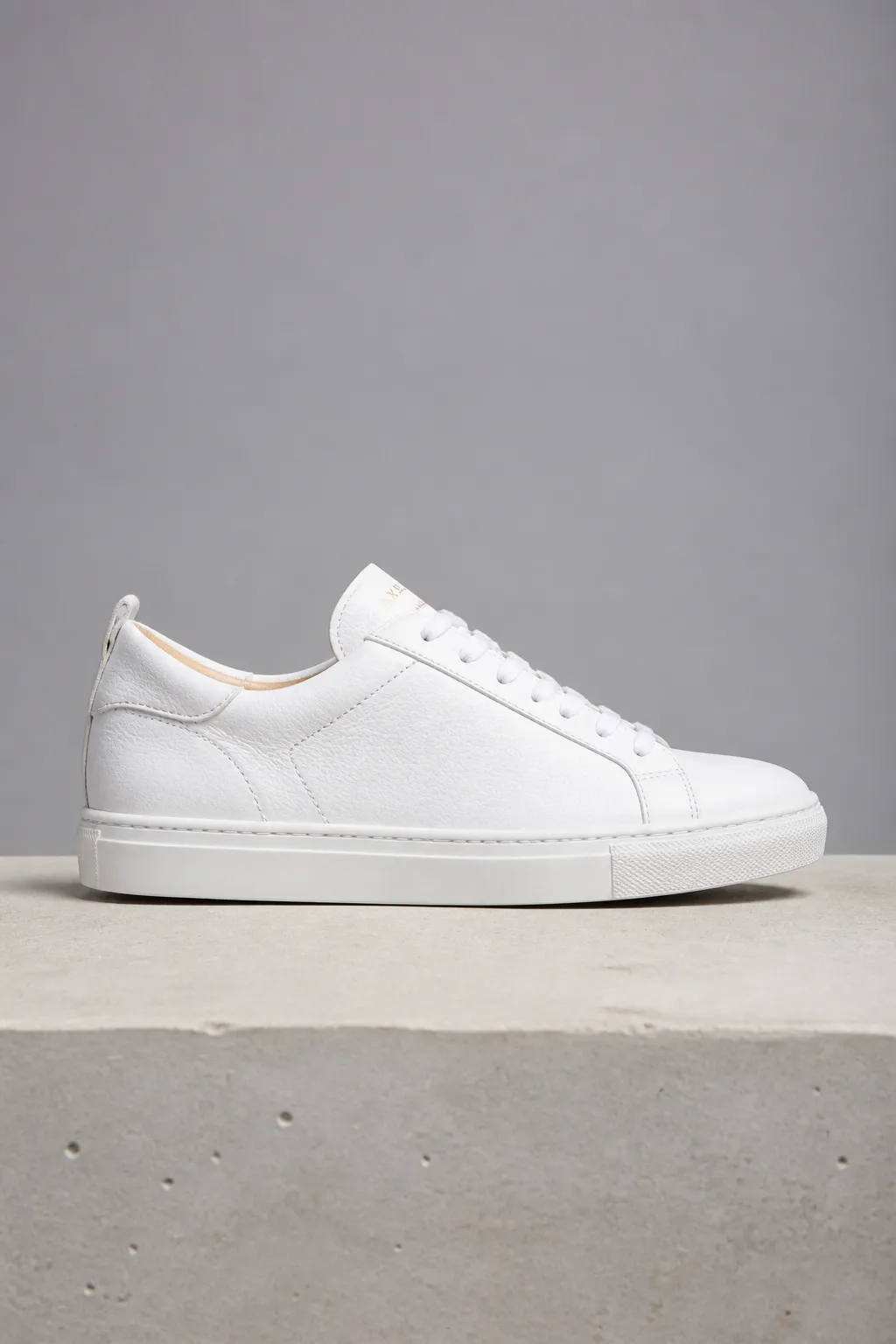 Before: the still that went into FrameSurfer's Image to Video tool.
 After: made with FrameSurfer's Image to Video tool from the photo above. First 4 seconds of the clip.
The camera orbits slowly around the sneaker as a soft highlight sweeps across the leather. Nothing else moves.
What happened. The camera swings from a side view to a three-quarter view of the toe. The shoe keeps its shape and laces as the view changes. A soft band of light appears on the wall behind it.
Why it works:
- One camera move and one light change. Nothing competes for attention.
- "Nothing else moves" is the lock. It stops the model from adding extras.
- The prompt never says what the shoe looks like, so it stays the same shoe.
Cabin: a place that breathes
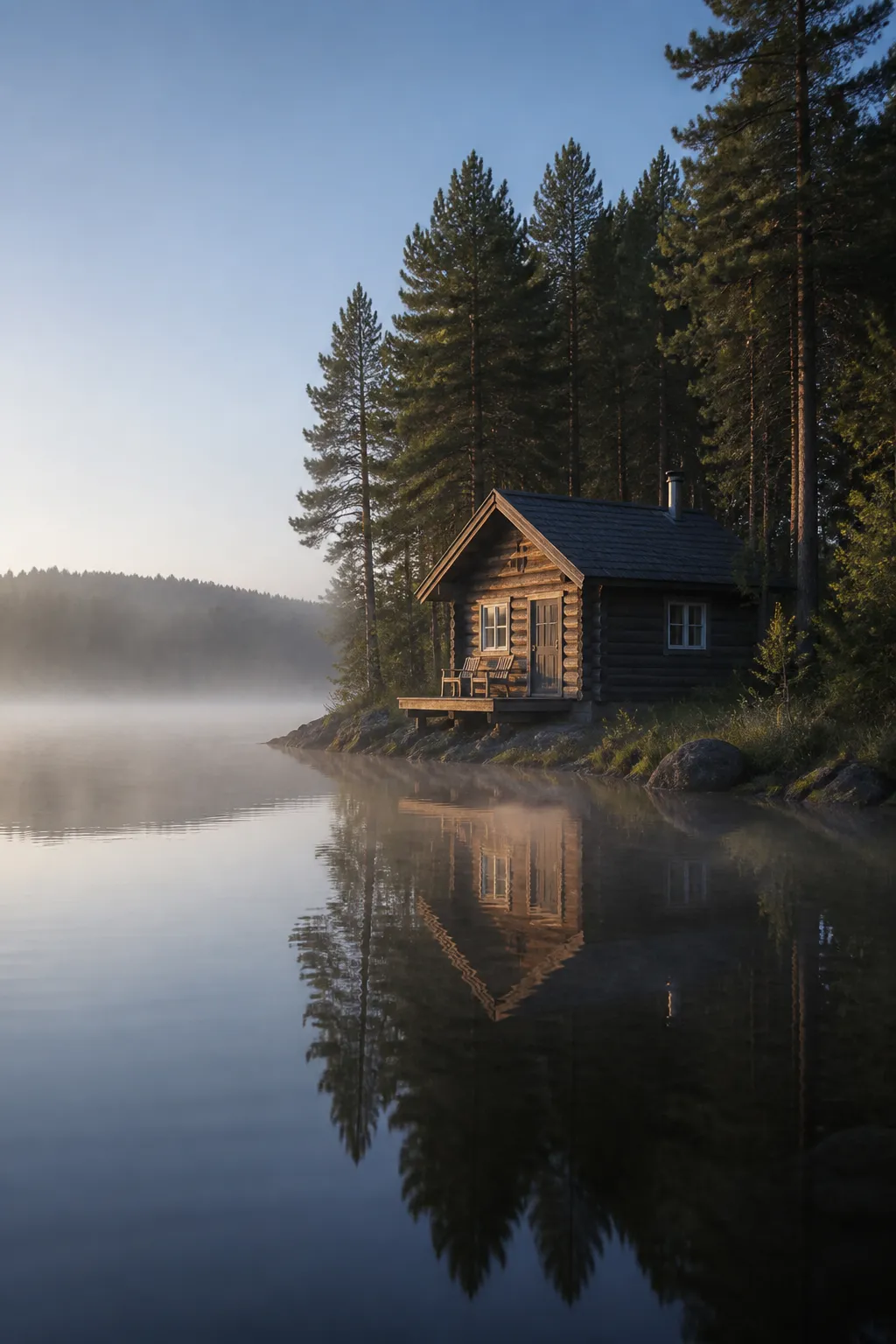 Before: the still that went into FrameSurfer's Image to Video tool.
 After: made with FrameSurfer's Image to Video tool from the photo above. First 4 seconds of the clip.
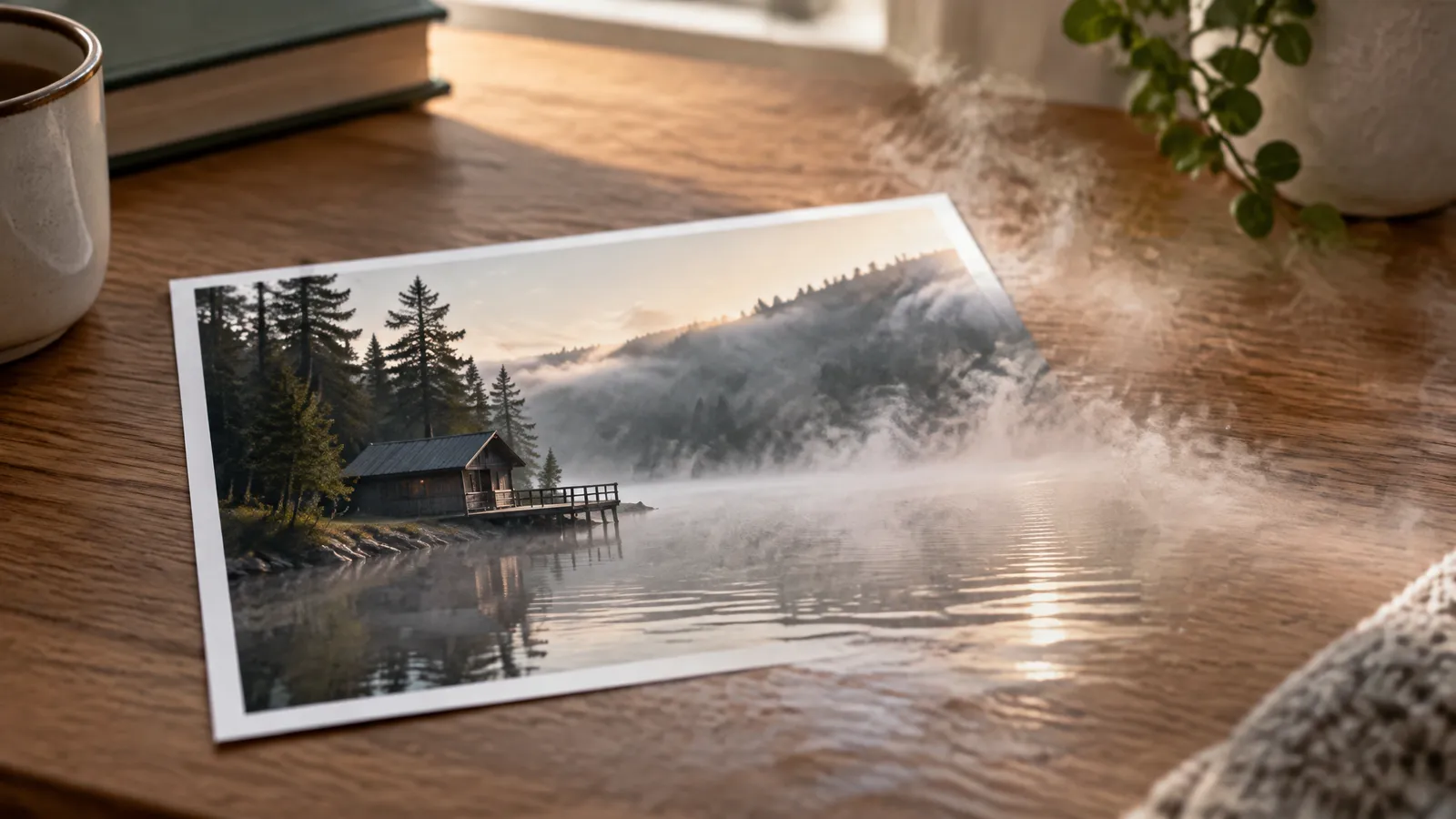
Mist drifts across the water, the reflection ripples gently, and the camera pushes slowly forward toward the cabin.
What happened. The camera moves closer to the cabin. Rings spread across the still water and break up the reflection. Mist hangs low over the lake.
Why it works:
- Three small motions, each on a different layer: the air, the water and the camera.
- Soft words ("drifts", "gently", "slowly") keep the pace calm.
- The same pattern suits property photos, travel shots and any quiet outdoor scene.
Flower seller: a person who moves
 Before: the still that went into FrameSurfer's Image to Video tool.
 After: made with FrameSurfer's Image to Video tool from the photo above. First 4 seconds of the clip.
She lifts a bunch of tulips and turns her head toward the camera with a small smile. Leaves and fabric move in a light breeze.
What happened. She glances down, reaches into the stall, and holds a bunch of pink tulips out toward the camera, smiling. Her face and clothes stay the same.
Why it works:
- One clear action with a start and an end: lift the flowers, look up, smile.
- "She" is enough. The prompt does not describe her face, hair or clothes.
- The breeze line adds life around her without asking her to do more.
People are the hardest subject, because small changes to a face are easy to spot. Keep actions small at first.
What the three prompts have in common
Here is each prompt split into the four parts from step 3. None of them uses all four, and none describes how anything looks.
| Part | Sneaker | Cabin | Flower seller |
|---|---|---|---|
| Camera | Orbits slowly | Pushes slowly forward | Not mentioned |
| Subject | A highlight sweeps across the leather | None, the cabin stays put | Lifts tulips, turns her head, small smile |
| Surroundings | None | Mist drifts, reflection ripples | Leaves and fabric move in a breeze |
| Lock | "Nothing else moves." | None | None |
Camera words worth knowing:
- Push in: moves toward the subject. Good for faces and houses.
- Pull back: moves away to reveal the setting.
- Orbit: circles the subject. Good for products.
- Pan left or right: slides the view sideways across a wide scene.
- Tilt up or down: reveals height, like a tall tree or a building.
- Static camera: only the subject moves. The safest choice for faces.
Prompt starters by type of picture
Adapt these to your own photo. Change the nouns, keep the shape.
- Product: "The camera pushes in slowly toward the bottle as soft light moves across the glass. Nothing else moves."
- Pet: "The dog tilts its head and blinks, and its ears twitch. The camera stays still."
- Portrait: "She blinks, breathes, and gives a small smile. Her hair moves slightly in a breeze. The camera stays still."
- Room or property: "The camera moves slowly forward through the doorway as sunlight shifts across the floor."
- Painting or illustration: "The clouds drift and the water moves gently. The colors and brushstrokes stay the same."
For dozens more, see the AI video prompts guide.
How to animate old photos
Old family photos need extra care.
- Scan it well. The Library of Congress suggests 300 dpi for 4x6 and 5x7 prints. To enlarge them to 8x10 or bigger, it suggests 400 or 600 dpi (its scanning guide, checked September 2026). A clip often moves in toward a face, so scanning small prints at 600 dpi gives the model more detail. Clean the scanner glass first.
- Keep the original. Save one untouched scan and work on a copy. The same guide recommends at least two copies, stored in different places.
- Fix damage first. The model keeps what is in the frame, scratches and dust spots included. Repair them in a photo editor before you animate.
- Crop close. In a group photo, crop to one or two faces. Each face then gets more pixels.
- Keep motion subtle. A blink, a breath, a slight turn of the head, a small smile. Keep the camera still or push in very slowly. For example: "He blinks slowly and gives a small smile. The camera pushes in very slowly. Nothing else changes."
- Ask the family. A moving face of someone you have lost can be comforting to one person and upsetting to another. Ask close relatives before you share it.
- Label it when you post. As of September 2026, TikTok requires creators to label AI-generated content that shows realistic-looking people or scenes. It also does not allow using the likeness of private figures without consent (TikTok Community Guidelines). YouTube asks creators to disclose realistic AI content that makes a real person appear to say or do something they did not do (YouTube Help).
When the result looks wrong
Fix one cause at a time.
| Problem | Likely cause | Try this |
|---|---|---|
| The face or product changed | The prompt described how it looks | Remove appearance words and add "Nothing else changes." |
| Hands or fingers warp | Big hand movement, or hands at the edge of the frame | Keep hands still, or use a photo with hands fully visible |
| Almost nothing moves | A vague prompt like "bring it to life" | Name one concrete motion: "steam rises", "the camera pushes in" |
| Too much happens | Several actions at once | Keep one subject action and one camera move |
| Text or logos look garbled | Text laid over the photo | Start from a clean photo and add text later in an editor |
Turn one clip into a full video
One picture gives you one short clip. For a longer post, animate several photos and add a voiceover, captions and music. FrameSurfer can build that from your own photos and script: see how to make an AI video with your own images and script.
If you want a handmade, frame-by-frame look instead of smooth motion, these stop motion ideas are a good next read.
Have a photo ready? Open Image to Video, add it, and write one line about how it should move.
Frequently Asked Questions
Can I animate a picture for free?
A simple pan or zoom needs no AI, so ordinary video or slideshow software can do it. AI image to video runs a paid model. On FrameSurfer you can add the photo and write the motion without an account, and generating needs a plan.
How long can an animated picture be?
It depends on the model. On FrameSurfer the longest clip is 8 seconds on Veo 3.1, 10 to 15 seconds on most other models, and 30 seconds on Alibaba Wan 3. You pick the exact length before generating.
Will AI change my face or my product?
The clip starts from your frame, so the subject stays. Describing only the motion, not the appearance, keeps it that way. Small, slow movements also help faces stay true.
Can I make a photo talk?
Yes. FrameSurfer's Talking Character tool takes one clear front-facing photo and the line you type, and generates a clip of that face saying it.
Can I use the animated clip commercially?
Under FrameSurfer's terms, you own what you create and can use it personally or commercially. You still need the right to use the original photo, so start from a picture you took or have permission to use.