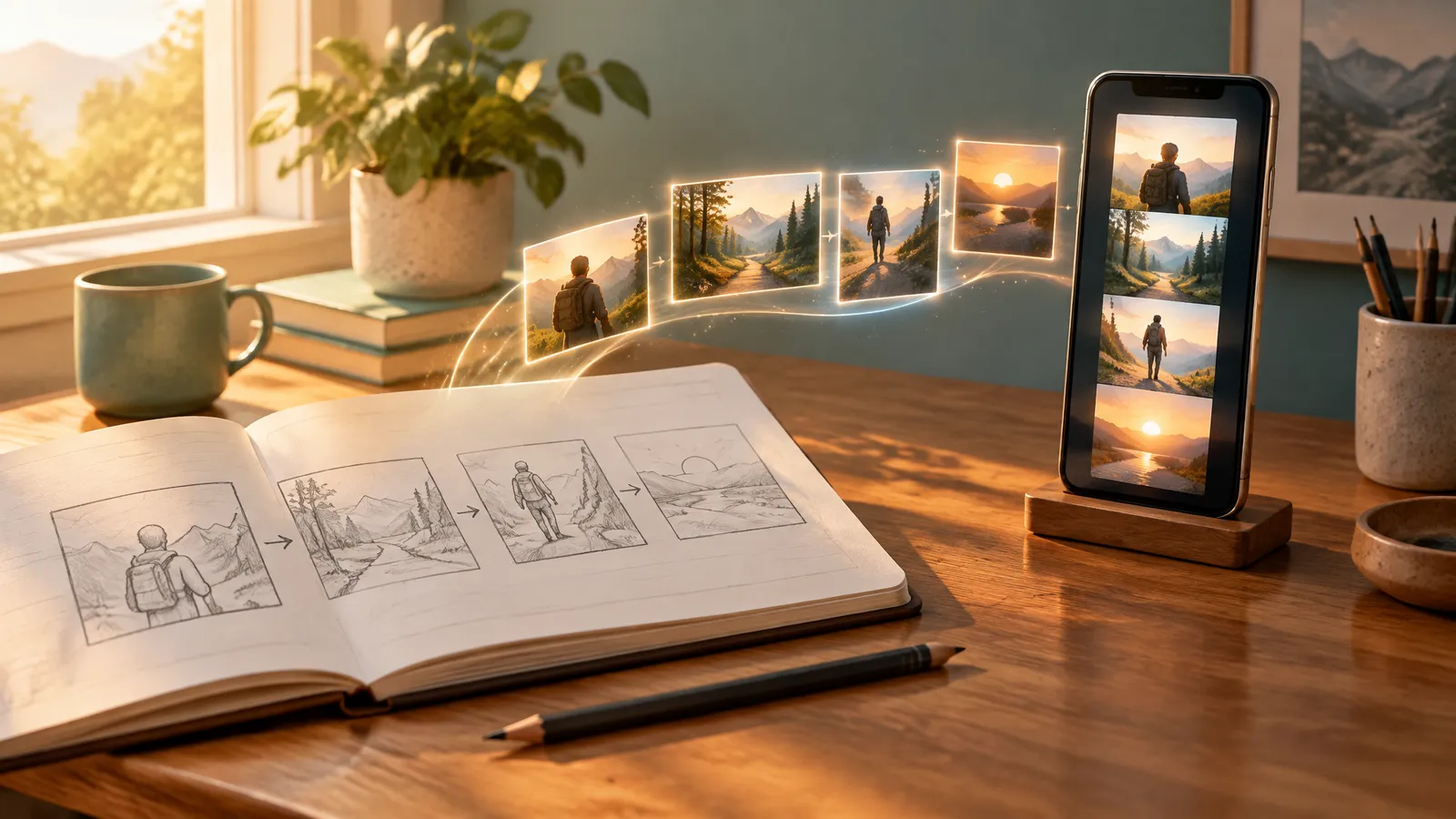
To make an AI video, write a short script and turn each line into a scene prompt. Generate those scenes with an AI video model. Then add voiceover, captions and music, and export in the right shape for your platform.
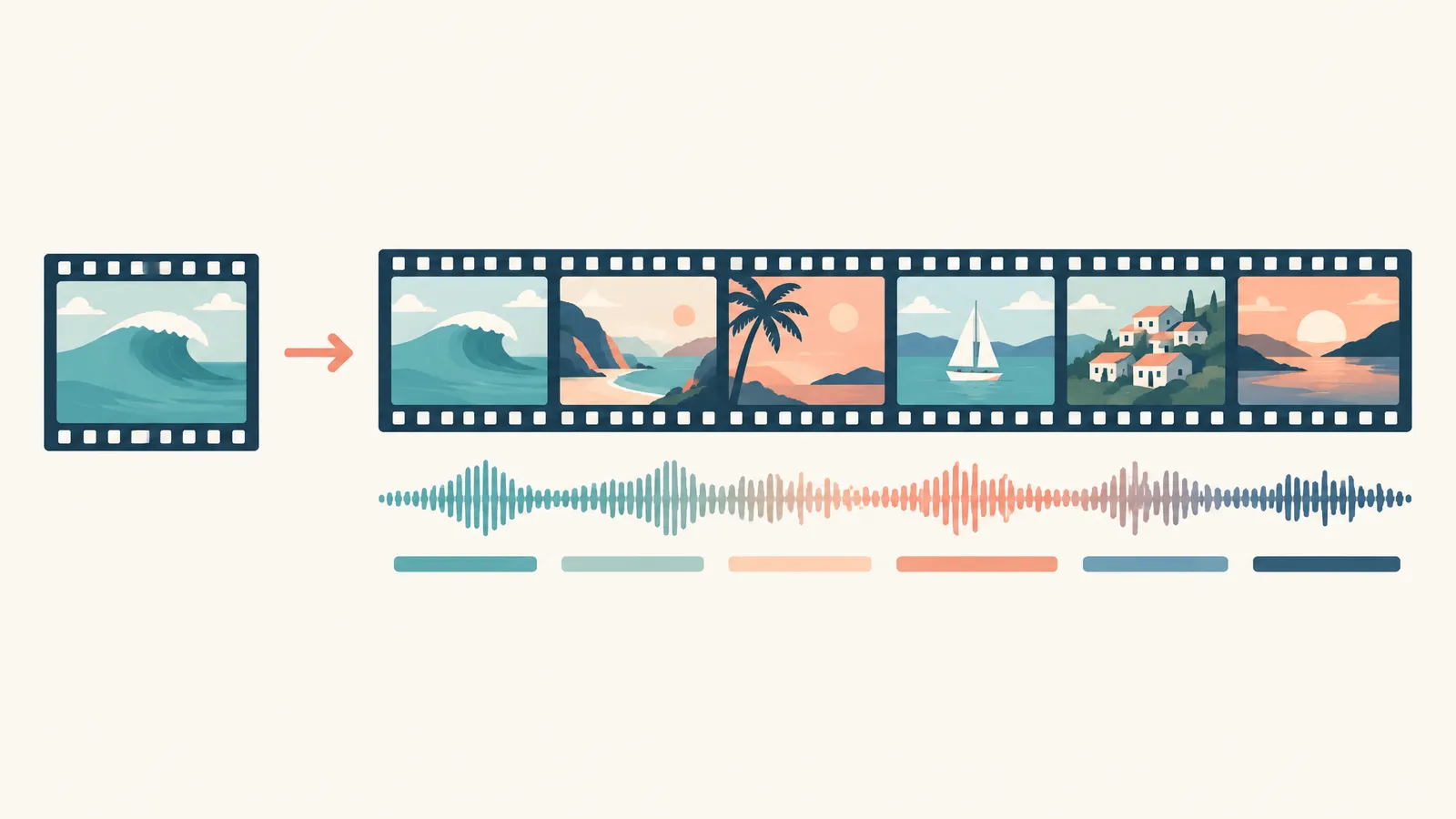
One prompt gets you one clip, usually a few seconds long. A finished video is many clips cut together around a script. This guide covers every step, with a worked 30-second product ad that shows the exact prompt text.
First, Know What You Are Making: a Clip or a Video
An AI video model, such as Veo 3.1 or Kling 3.0, turns one prompt into one short clip. It does not write a script, record a voiceover, add captions or cut shots into a story. That second job makes a video ready to post.
| Single clip | Finished video | |
|---|---|---|
| What goes in | One prompt, sometimes one photo | An idea, a script, photos or a web link |
| What comes out | One shot with one action | Many scenes in order |
| Length | A few seconds, up to about 30, depending on the model | As long as the script |
| Sound | Optional sound made with the shot | Voiceover, captions and music |
Some "text to video" tools only assemble stock footage around your script. FrameSurfer generates new footage and covers both columns. Its single-clip tools turn a prompt or a photo into one MP4. Its main editor starts from an idea, a script, photos or a link. It writes the script, generates every shot, and adds voiceover, captions and music. You then adjust timing, text and layout in a visual editor.
How to Make an AI Video in 8 Steps
Step 1: Pick the Platform and Shape First
Decide where the video will live before you write a word. A wide shot framed for YouTube can lose its subject when you crop it to vertical.
| Where you will post | Shape | Good length for a first video |
|---|---|---|
| TikTok, Instagram Reels, YouTube Shorts | 9:16 vertical | 15 to 45 seconds |
| Regular YouTube video | 16:9 widescreen | 1 to 3 minutes |
| Square feed post or ad | 1:1 square | 15 to 30 seconds |
YouTube counts square or vertical videos up to three minutes long as Shorts (YouTube Help, September 2026).
Step 2: Write the Idea, Then the Script
Start with one sentence: what happens, who it is for, and why someone keeps watching. For example: "A 30-second ad for a handmade mug, for people who work from home."
Then split it into scenes. Give each scene one line of voiceover and one shot. Five or six seconds per scene is a comfortable pace. Put your strongest line first, because it is your hook.
The Hook Generator gives you 10 spoken openings for a topic. The AI Video Script Generator turns a one-line idea into a timed, scene-by-scene script. It writes 15, 30, 45, 60 or 90 seconds.
Read the script aloud with a timer. If it runs long, cut words, not scenes.
Step 3: Choose How to Start
Pick the starting point that matches what you already have.
| Start from | Use it when | What you give it |
|---|---|---|
| Text to video | You want any scene you can describe | A written description of the shot |
| Image to video | The product, person or place must look exactly right | One photo, plus how it should move |
| Script to video | You already have the words | A full script, which becomes the scene plan |
| URL to video | You have a product page, listing or article | A link to a public web page |
If you sell online, the page you already have is often the fastest start. Paste it into URL to Video and FrameSurfer reads its text, facts and photos. You shape the script in chat, and the video renders with voiceover, captions and music.
Step 4: Pick a Model
FrameSurfer runs seven AI video models on one plan. Pick a model for each scene, or let FrameSurfer choose. Compare them all on the AI video models page.
| If you need | Look at | Why |
|---|---|---|
| One long unbroken shot | Alibaba Wan 3 | Clips up to 30 seconds |
| Sound made with the picture | All seven, such as Veo 3.1 Fast, Kling 3.0 and Seedance 2.0 | Native audio |
| Full HD | Wan 3, Seedance 2.0, Kling 3.0 and Veo 3.1 Fast | 1080p output |
| Control of how a shot ends | Seedance 2.0, Kling 3.0, Veo 3.1 Fast and Pruna | They take a start and an end image |
Step 5: Generate Scene by Scene
- Write one prompt per scene, with one action per prompt.
- Generate the hook shot first, since it carries the most weight.
- Make two or three takes of key shots and keep the best.
- Reuse a character's description word for word, or use a saved character.
- Check each clip for warped hands, melting objects or garbled text.
Step 6: Edit the Cut
Trim each clip to its best part, and cut before any glitch shows. Put the scenes in script order and watch them back to back. Redo a weak scene on its own, not the whole video. Then adjust timing and on-screen text in the editor.
Step 7: Add Voiceover, Captions and Music
Voiceover is narration over the whole video. If you change the script, regenerate it. A character talking on camera is a separate kind of clip.
Captions let people follow along with the sound off. Burn them into the picture, and keep them short and large. Keep them clear of the bottom edge, where app buttons sit.
Music sits low, under the voice. Most models can also make sound with each clip. Turn that down when voiceover and music carry the video.
Step 8: Export and Check on a Phone
Export an MP4 in the shape you picked. FrameSurfer exports up to 1080p in 9:16, 1:1 or 16:9. Watch it on a phone with the sound off, then on. Fix anything you would scroll past.
Worked Example: A 30-Second Product Ad
Here is a full plan for a vertical ad for a handmade ceramic mug. The shop and product are made up. Swap in your own product, and only claim what is true.
The Brief
This is the message you would type into an AI video maker, with product photos attached:
Make a 30-second vertical ad (9:16) for a handmade stoneware coffee mug
from a small pottery studio. Speckled cream glaze, thick walls, wide handle.
Audience: people who work from home. Tone: warm and calm.
Add voiceover, captions and soft acoustic music.
Use my product photos for the close-ups.
End on the line "Made by hand. Made to last."
The Script and Shot Prompts
Scene 1, 0:00 to 0:06 (hook, text to video)
- Voiceover: "Your coffee is cold by the second email. Here is the fix."
- Prompt:
A thin white mug sits on a cluttered home desk with no steam. A hand pushes it aside. Slow push-in at desk height. Gray morning light from a window on the left. Realistic, phone camera look.
Scene 2, 0:06 to 0:12 (the maker, text to video)
- Voiceover: "Every mug is thrown by hand in a small studio."
- Prompt:
Close-up of a potter's hands shaping wet clay on a spinning wheel, clay flecks on the wrists. Soft side light from a studio window. Handheld camera, shallow depth of field.
Scene 3, 0:12 to 0:18 (the product, image to video from your photo)
- Voiceover: "Thick stoneware walls hold the heat. The handle fits four fingers."
- Prompt:
The camera circles the mug slowly at table height as steam rises. A soft highlight slides across the glaze. The mug stays still.
Scene 4, 0:18 to 0:24 (in use, text to video)
- Voiceover: "So the last sip tastes as good as the first."
- Prompt:
A woman at a home desk lifts a speckled cream mug and takes a sip, laptop out of focus behind her. Warm afternoon light from a window. Medium shot at eye level, gentle handheld movement.
Scene 5, 0:24 to 0:30 (call to action, image to video from your photo)
- Voiceover: "Made by hand. Made to last."
- Prompt:
The mug rests on a wooden shelf against a plain cream wall. Slow push-in. Soft, even light.

Finishing It
- Product shots. Scenes 3 and 5 start from your real photo, so the mug keeps its true shape. Their prompts describe motion only.
- Text on screen. Add "Link in bio" as editor text. Models often garble words drawn inside footage.
- Music. Ask for "soft acoustic guitar, slow and warm, no vocals," kept low.
In FrameSurfer, you paste the brief into the editor with your photos, and it drafts the script and scenes. Then you fix any scene in chat or in the editor.
How to Write AI Video Prompts That Work
A good prompt describes one shot. Write what the camera sees, in this order.
| Part | What to write | Example |
|---|---|---|
| Subject | Who or what, with two or three visible details | An older fisherman in a yellow raincoat |
| Action | One clear motion | Pulls a rope in, hand over hand |
| Setting | Where and when | On a small boat in a gray harbor at dawn |
| Camera | Shot size, angle, movement | Low angle, slow push-in |
| Light | The source and its direction | Flat light from an overcast sky |
| Style | The look | Realistic, muted colors, light film grain |
| Sound, if the model makes audio | What we hear | Gulls, a creaking rope, wind |
Three rules fix most prompts:
- Describe, don't command. "A fisherman pulls a rope" beats "Make a video of a fisherman."
- One action per shot. Two actions in six seconds rarely both look right.
- Name the light. "Window light from the left" says more than "nice lighting."
Before and After 1: A Text-to-Video Shot
Before: a dog on a beach
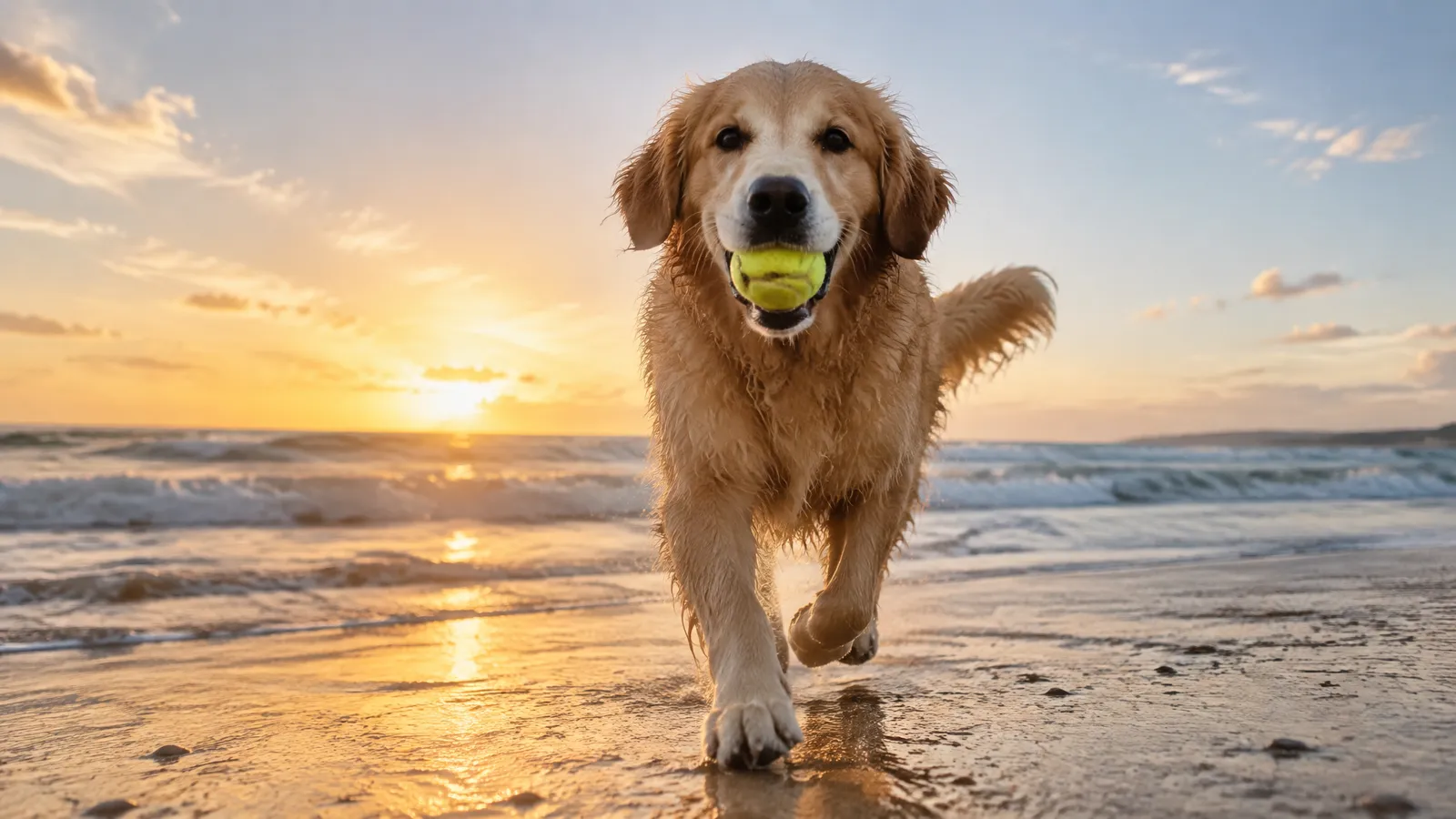
After: A golden retriever sprints along wet sand toward the camera, a tennis ball in its mouth. Waves break behind it. Low tracking shot at the dog's eye level. The late sun behind the dog puts a warm rim of light on its fur. Realistic, phone camera look.
The fix adds an action, a direction, a camera height, a light source and a style.
Before and After 2: An Image-to-Video Product Shot
Before: make my sneaker look cool and premium with nice lighting
After: The camera circles the sneaker once at table height while a soft light slides across the suede. The shoe stays still. Plain gray backdrop.
Your photo already holds the look, and "premium" invites the model to change the product. Describe only the motion.
Before and After 3: A Story Scene
Before: scary forest at night
After: A hiker with a headlamp walks slowly down a narrow trail between tall pines, then stops and looks back. Fog drifts low between the trunks. The camera follows from behind at shoulder height. Her headlamp is the only warm light, with cold moonlight from above. Muted colors, film grain, quiet footsteps and wind.
Now there is a character, a story beat, one camera move and two named light sources.
For more examples by genre, see our guide on how to write AI video prompts.
How to Make Realistic AI Videos
Realism comes from small, believable choices, not bigger adjectives. Words like "epic, 8K, masterpiece" give the model nothing to work with.
- Start from a real photo when accuracy matters. Use image to video for a real product, person or place. Pick a sharp photo with no text or logos over the subject.
- Light it like a real place. Name one main source, such as a window, a streetlight or an overcast sky.
- Ask for ordinary cameras. "Phone footage" and "gentle handheld" look more real than a perfect crane shot.
- Keep shots short and simple. Long, busy shots are where faces and objects drift.
- Say what to leave out. A negative prompt lists things you don't want, like "text, watermark." Wan 3, Kling 3.0 and Veo 3.1 Fast accept one.
- Add real sound. Room tone, footsteps and wind make a scene feel lived in.
- Cut around mistakes. If a hand warps at second five, end the clip at four.
How to Make AI Videos for YouTube and TikTok
| Setting | TikTok, Reels and Shorts | Regular YouTube |
|---|---|---|
| Shape | 9:16 vertical | 16:9 widescreen |
| First video length | 15 to 45 seconds | 1 to 3 minutes, or 10 to 30 six-second scenes |
| Opening | Hook line in the first second, spoken and on screen | A hook, then a quick preview of the payoff |
Hooks. Open on your most surprising line or image. Say it and show it as text at the same time. Skip the logo and the greeting.
Labels. YouTube asks creators to disclose realistic AI content, such as a real person saying something they never said. Clearly unrealistic content, like a fantasy world, is exempt (YouTube Help, September 2026). TikTok requires a label on AI content with realistic images, audio or video. It announced that rule in September 2023 (TikTok Newsroom, checked September 2026).
Can You Make AI Videos for Free?
Sometimes, with limits. Video generation needs a lot of computing power, so most tools cap free use. When a tool says "free," check its pricing page for:
- A watermark on exports
- A resolution cap below 1080p
- Shorter clips than paid plans
- A one-time or daily generation allowance
- A slower queue
- No commercial use
Free tiers work well for testing a look.
Some steps cost nothing anywhere: the idea, the script, the shot list and the prompts. Do that planning first, so every generation counts.
On FrameSurfer, creating an account and writing a prompt is free. Generating runs paid models, so it needs a plan. First-time subscribers get a 7-day free trial, and every plan includes all the image and video models.
The quickest way to learn is to make one shot. Paste the golden retriever prompt into Text to Video. Change one thing at a time, then build up to a full video.
Frequently Asked Questions
Can I make AI videos for free?
Yes, for testing. Free plans usually limit watermarks, resolution, clip length, the number of generations or commercial use.
What is the difference between text to video and script to video?
Text to video turns one description into one clip. Script to video turns each scene of a script into a shot. It then adds voiceover, captions and music to make a finished video.
How long can an AI video be?
A single AI clip is short. Most models in FrameSurfer cap clips at 8 to 15 seconds, and Alibaba Wan 3 goes to 30. Longer videos join many scenes, so the length depends on your script.
Can I use AI-generated videos commercially?
It depends on the tool's terms. Under FrameSurfer's terms, you own what you create and can use it personally or commercially. Some free tiers elsewhere limit it, so check first.
Do I have to label AI videos on YouTube and TikTok?
For realistic content, yes. YouTube asks you to disclose realistic altered or synthetic content. TikTok requires a label on AI content with realistic images, audio or video.